How to Create a Transport Order on ExusTrans
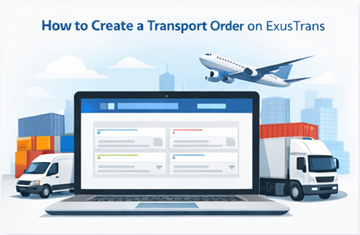
This guide explains step by step:
- how to enter pickup and delivery details correctly,
- how to describe cargo and transport requirements,
- how to receive and compare carrier offers,
- and how to book transport and follow the delivery process.
Step 1: Create an account or sign in
To publish a transport order, you must be logged in. If you are shipping as a company, it is recommended to complete your company profile (company name, billing address, VAT number if applicable). This makes communication and invoicing easier later.
Step 2: Enter pickup and delivery details
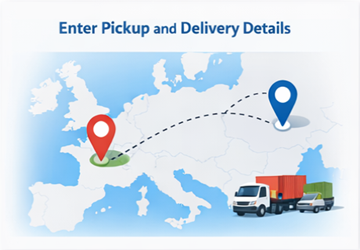
Accurate locations and dates help carriers calculate realistic prices and schedules.
Pickup location
Provide:
- City, postal code, and country (or full address)
- Pickup date or time window
- Access information:
- Truck access available
- Loading ramp or forklift
- Contact person (if required)
Delivery location
Provide:
- City, postal code, and country (or full address)
- Delivery date or time window
- Access and delivery notes:
- Opening hours
- Floor, elevator, or curbside delivery
- Contact person (if required)
Tip: Time windows instead of exact times usually result in more offers and better prices.
Step 3: Describe the cargo clearly
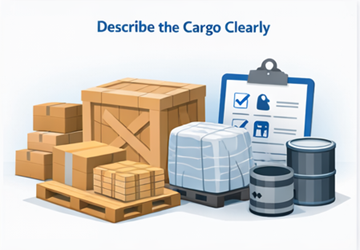
Clear cargo details allow carriers to respond quickly without additional questions.
Cargo type
Examples:
- Documents
- Liquid
- Pallets
- Boxes or cartons
- Furniture
- Machinery or industrial goods
- Vehicles (car, motorcycle, van)
- Partial load or full load
- Express or same-day delivery
Dimensions and weight
Include:
- Length × width × height
- Total weight
- Number of units
- Packaging type (palletized, boxed, loose, on wheels)
Sensitivity and value (optional)
- Fragile goods
- Temperature-controlled transport
- High-value cargo or insurance requirements
Step 4: Select vehicle type and requirements
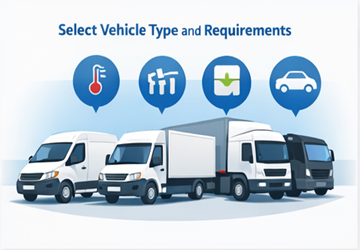
Choose requirements that help carriers decide whether they can handle the transport. Examples:
- Vehicle type: van, box truck, semi-trailer, car transporter
- Equipment: tail lift, loading ramp, straps
- Handling: two-person delivery, inside delivery, special handling
- Flexibility: allow carrier recommendations if unsure
Step 5: Specify additional costs or special conditions

Some transports involve extra conditions. You can specify them in advance or clarify them later with the carrier. Examples:
- Tolls and road charges
- Waiting time
- Additional stops
- Customs or export documents
- Loading or unloading assistance
Transparency at this stage helps avoid misunderstandings later.
Step 6: Write a clear description
A clear order description increases response quality and speed.
Description examples
- 3 pallets from Cologne to Antwerp – pickup Tuesday
- Motorcycle transport from Brussels to Munich
- Partial load: cartons 400 kg from Amsterdam to Paris
Step 7: Publish the transport order
Before publishing, quickly check:
- pickup and delivery locations
- dates and time windows
- cargo dimensions and weight
- special requirements or notes
Once published, your transport order becomes visible to relevant carriers.
What happens after publishing?
Receive carrier offers
Carriers send offers that may include:
- price
- proposed pickup and delivery times
- questions or suggestions
Compare offers
When reviewing offers, consider:
- total price
- timing and flexibility
- included services
- communication quality
Use the chat
The built-in chat allows you to confirm details such as:
- exact times
- access conditions
- documents or special handling
Book the carrier
Once you accept an offer, the order status changes and the transport is scheduled.
Transport status overview
Depending on your workflow, order statuses may include:
- Ready
- Booked
- Loaded
- In transit
- Delivered
- Completed
These statuses help you track progress until delivery is finished.
Frequently asked questions
How fast will I receive offers?
Response time depends on route, timing, and requirements. Flexible dates usually result in faster responses.
Can a customer send an offer to carriers?
Yes. In addition to receiving offers from carriers, a customer can also send their own order to selected carriers. This allows customers to propose a price or conditions directly and negotiate details through the chat before booking.
Can I edit an order after publishing?
After publishing an order, the customer can only change the order status and loading time. Once an offer is accepted, the order data is copied into the offer. From that point on, further changes — such as price, extra costs, destinations, or other transport details — are handled directly within the chat between the customer and the carrier.
Is it free to publish a transport order?
Yes. Publishing a transport order on ExusTrans is always free.
Why is the carrier amount different from the order price?
The order price includes the ExusTrans service fee. Carriers receive an amount that is 20% lower than the customer price, which is automatically calculated by the system.
Can I add multiple stops?
Yes. Multiple stops are available when you choose a distribution-type order during order creation.
What if pickup or delivery details change?
Contact the carrier immediately via chat to update the details.
How are extra costs handled?
Extra costs (for example tolls or additional expenses) are handled directly in the chat. If a carrier requests extra costs, the customer can accept or decline. If accepted, the offer price is updated automatically by the system. If declined, the offer price remains unchanged, and the carrier can continue with the original offer or propose a revised offer. All changes are tracked in the conversation to keep pricing clear for both sides.
Call to action
Ready to ship your goods?
Create your transport order on ExusTrans today.
eXus Dev